
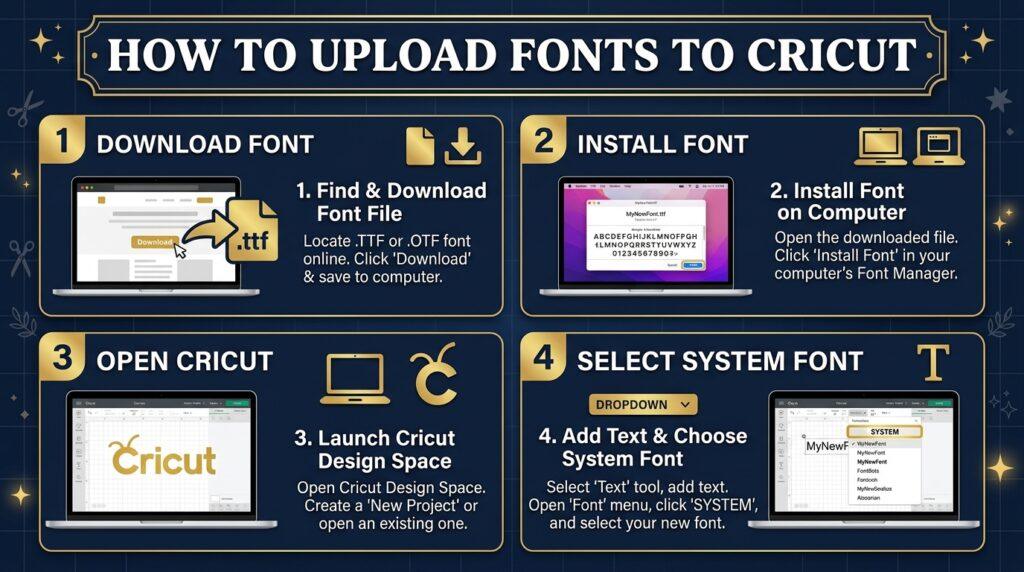
Learning how to upload fonts to Cricut Design Space is one of the easiest ways to make your projects stand out. This step-by-step guide walks you through every step — on Mac, Windows, iPhone, and Android.
Some links in this post are affiliate links. We may earn a commission if you sign up or purchase — at no extra cost to you.
Before You Upload Fonts to Cricut Design Space
Before you upload fonts to Cricut Design Space, you need to install them on your device first. Cricut Design Space uses the fonts installed on your computer or phone — learning how to upload fonts to Cricut correctly starts with this important step.
Works on All These Platforms
Windows
Desktop app or browser
Mac
Desktop app or browser
iPhone / iPad
Design Space app
Android
Design Space app
How to Install Fonts on Windows
Download the font file
Download the .ttf or .otf file to your computer. Unzip if it came in a .zip folder.
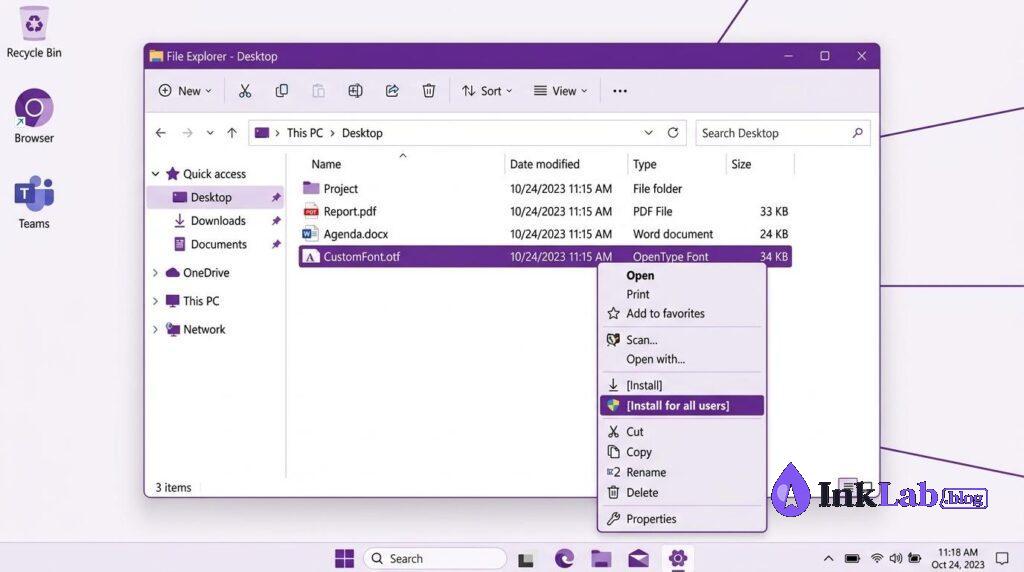
Right-click the font file
Find the .ttf or .otf file in your Downloads folder. Right-click on it.
Click “Install” or “Install for all users”
Select Install from the context menu. “Install for all users” requires admin rights but works more reliably.
Restart Cricut Design Space
Close and reopen Design Space completely. Your new font will appear under System Fonts in the font list.
How to Install Fonts on Mac
Download the font file
Download the .ttf or .otf file. If it came in a .zip, double-click to unzip automatically.
Double-click the font file
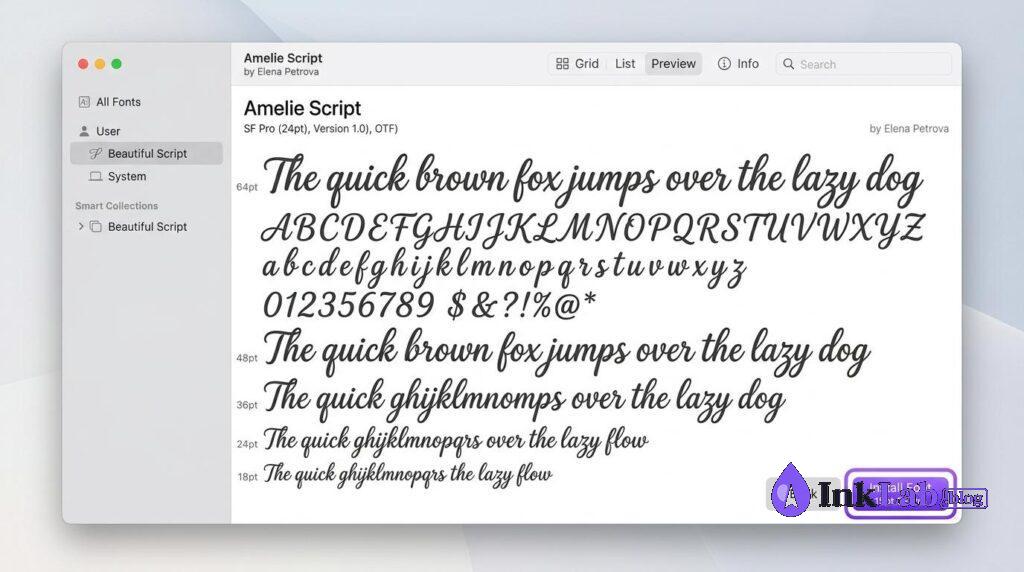
Double-click the .ttf or .otf file. Font Book will open showing a preview of the font.
Click “Install Font”
Click the Install Font button in the bottom right of the Font Book preview window.
Restart Cricut Design Space
Close and reopen Design Space. Type “System Fonts” in the font search to find your new font.
How to Use Custom Fonts on iPhone & iPad
iOS doesn’t allow direct font installation the same way as desktop. To use custom fonts on your iPhone or iPad with Cricut Design Space, you need a font manager app.
Download a font manager app
Install AnyFont or Fonteer from the App Store — both are free and work well with Cricut.
Save the font file to your Files app
Download the .ttf or .otf file and save it to your iPhone Files app (iCloud Drive or On My iPhone).
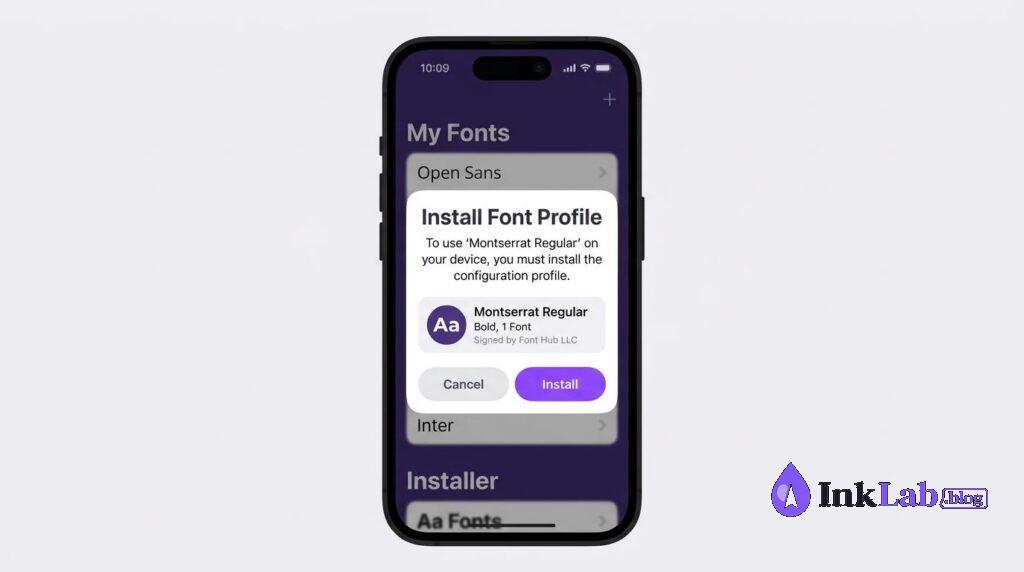
Open the font in AnyFont
Open AnyFont → tap the + button → select your font file → tap Install → follow the prompts to install via Settings.
Use in Cricut Design Space
Open Cricut Design Space app → create a text box → search for your font name under System Fonts.
How to Use Custom Fonts on Android
Android support for custom fonts in Cricut Design Space is limited. The most reliable method is to design on desktop and sync to your Android device, or use fonts already available in Design Space.
How to Find Your Uploaded Fonts in Design Space
Open Design Space and create a text box
Click the Text tool in the left toolbar → click on the canvas to create a text box.
Click the font selector
Click the font name dropdown in the top toolbar to open the font panel.
Filter by “System Fonts”
Click the Filter button → select System Fonts. This shows only fonts installed on your device.
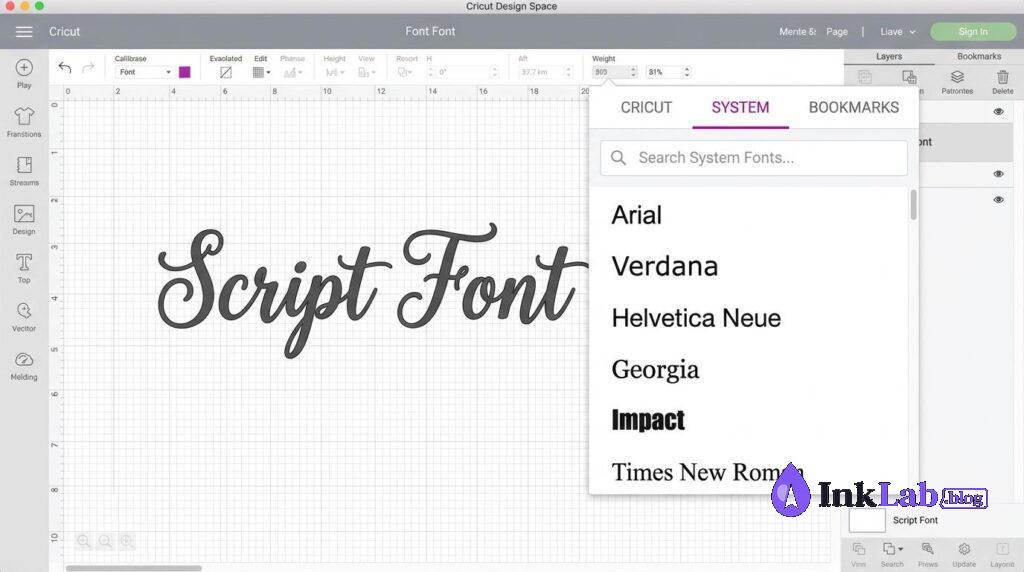
Search for your font name
Type the font name in the search box — it should appear in the list. Click to select and apply.
Need Great Fonts for Cricut?
Creative Fabrica has 178,000+ fonts optimized for Cricut — all with commercial license.
Browse Cricut Fonts on Creative Fabrica →Common Problems When Uploading Fonts to Cricut
Font installed but doesn’t appear in Design Space
Close Design Space completely and reopen it. If it still doesn’t appear, restart your computer. Make sure you installed the font for all users (Windows) or through Font Book (Mac).
Font appears but looks different than expected
Some fonts have multiple weights (Regular, Bold, Italic). Make sure you installed the correct weight file. In Design Space, try selecting different style options in the font panel.
Script font cuts as separate letters
Script fonts need the Weld tool to connect letters into one piece. See our guide on How to Use Script Fonts in Cricut Design Space for the full Weld trick.
Font won’t install on Windows
Try right-clicking and selecting “Install for all users” instead of “Install”. If that doesn’t work, manually copy the font file to C:\Windows\Fonts.
Final Thoughts on How to Upload Fonts to Cricut
Installing custom fonts for Cricut is straightforward once you know the steps. Desktop (Windows or Mac) gives the most reliable experience — install the font, restart Design Space, and search under System Fonts. For the best selection of Cricut-ready fonts with commercial license, Creative Fabrica is the go-to resource.
Looking for font recommendations? Check out our Best Fonts for Cricut guide and our Best Script Fonts for Cricut & POD for top picks.
Get Unlimited Cricut Fonts + Commercial License
178,000+ fonts including thousands of Cricut-optimized designs — one subscription, unlimited downloads.
Browse Cricut Fonts on Creative Fabrica →
FAQ
How do I add my own fonts to Cricut Design Space?
Install the font on your computer (Windows: right-click → Install; Mac: double-click → Install Font), then restart Cricut Design Space and search for it under System Fonts.
Are custom fonts free to use on Cricut projects?
It depends on the font license. Google Fonts are free for commercial use. Always check the license before selling products made with a font. Creative Fabrica fonts include a commercial license.
Why can’t I find my font in Cricut Design Space?
Make sure the font is fully installed, then close and reopen Design Space. Filter by “System Fonts” and search by name. If it still doesn’t appear, restart your computer.
Can I use OTF fonts in Cricut Design Space?
Yes — Cricut Design Space supports both .ttf and .otf font formats. Install them the same way and they’ll appear under System Fonts.
How many fonts can I install for Cricut?
There’s no limit — you can install as many fonts as you want. However, having too many fonts installed can slow down font loading in Design Space.