
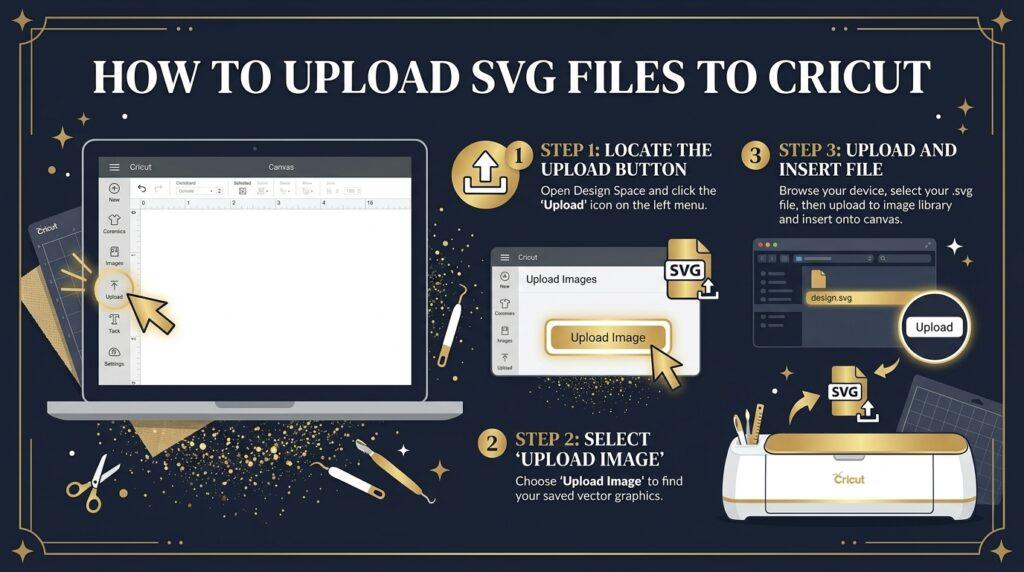
Uploading SVG files to Cricut Design Space is easier than it looks — once you know the steps. This guide on how to upload SVG files to Cricut Design Space walks you through the whole process on desktop and mobile, so you can go from download to cut in minutes.
Some links in this post are affiliate links. We may earn a commission if you sign up or purchase — at no extra cost to you.
What You Need Before You Start
Before uploading, make sure you have:
- A free Cricut Design Space account — sign up at design.cricut.com
- The SVG file downloaded to your device (not still zipped)
- Cricut Design Space app or browser open and ready
How to Upload SVG Files on Desktop (Mac & Windows)
Open Cricut Design Space
Go to design.cricut.com or open the Desktop app. Click New Project to start a blank canvas.
Click “Upload” in the left panel
Look for the Upload button on the left toolbar — it looks like an arrow pointing up. Click it.
Click “Upload Image”
A panel will open showing your previously uploaded files. Click the Upload Image button in the top right corner.
Select your SVG file
Click Browse and navigate to where your SVG file is saved. Select the .svg file (not the .zip) and click Open.
Click “Upload” to confirm
Design Space will preview your SVG. Click Upload — the file is now saved to your account.
Insert into your canvas
Find your uploaded SVG in the library, click it to select, then click Insert Images. Your design appears on the canvas ready to cut.
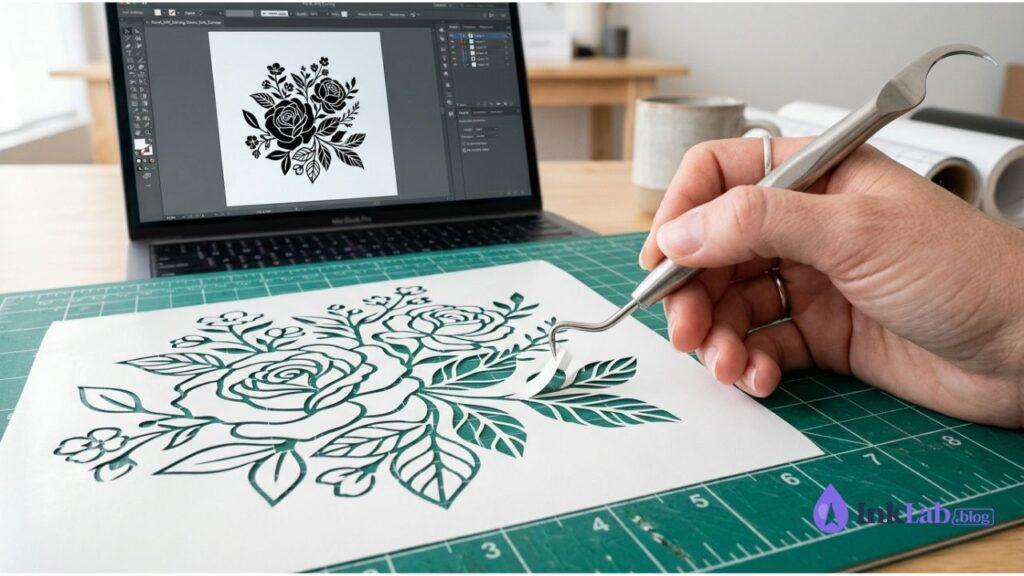
How to Upload SVG Files on iPhone & Android
Save the SVG to your phone
Download the SVG file to your phone’s Files app (iPhone) or Downloads folder (Android). Unzip if needed.
Open Cricut Design Space app
Tap the + button to create a new project, then tap Upload from the bottom menu.
Tap “Upload Image”
Select Browse Files and navigate to your SVG file in the Files app or Downloads folder.
Select and upload
Tap your SVG file → tap Upload. The design saves to your account and syncs across all devices.
Insert into canvas
Tap the design in your library → tap Insert Images. It appears on your canvas ready to cut.
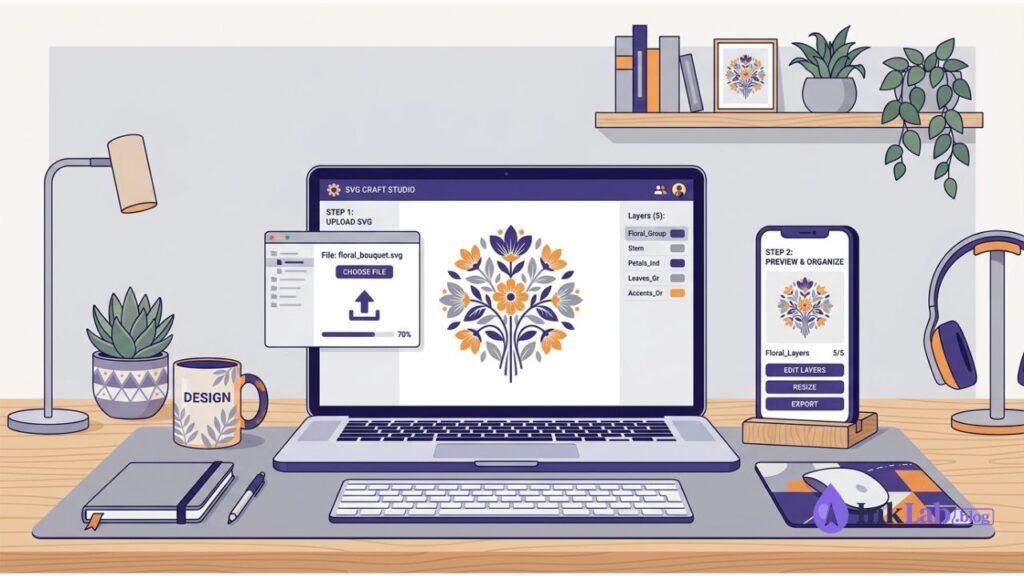
Need More SVG Files to Upload?
Creative Fabrica has millions of cut-ready SVG files — all optimized for Cricut with commercial license included.
Browse Free SVG Files on Creative Fabrica →Works on All These Platforms
Windows
Desktop app or browser
Mac
Desktop app or browser
iPhone / iPad
Cricut Design Space app
Android
Cricut Design Space app
Common Problems When Uploading SVG Files to Cricut
SVG file won’t upload to Cricut Design Space
Make sure the file is unzipped. If it still won’t upload, try a different browser (Chrome works best) or update the Design Space app.
Design shows as a single color after upload
This happens when Design Space treats the SVG as a flattened image. Re-download the file and make sure you’re selecting the .svg file, not a .png version.
Layers are missing or merged
Some SVG files have grouped layers. Select the design on canvas → click Ungroup in the top toolbar to separate all layers and edit them individually.
SVG file is too small or too large after upload
Use the resize handles on canvas — hold Shift while dragging to keep proportions. Or type exact dimensions in the top toolbar.
Get Unlimited Cricut-Ready SVG Files
Millions of SVG files optimized for Cricut — flowers, quotes, mandalas, holidays, and more. All with commercial license.
Browse SVG Files on Creative Fabrica →
FAQ
Can I upload SVG files to Cricut Design Space for free?
Yes — uploading SVG files is completely free in Cricut Design Space. You only pay for Cricut Access if you want to use Cricut’s own built-in designs.
What’s the difference between SVG and PNG for Cricut?
SVG files are fully editable vector files — you can resize without quality loss and edit individual layers. PNG files are flat images that cut as one piece. Always use SVG when available.
Do uploaded SVG files stay in my account?
Yes — once uploaded, SVG files are saved to your Cricut account and available on all your devices. They don’t expire or disappear.
Can I upload SVG files from Creative Fabrica to Cricut?
Yes — Creative Fabrica SVG files are fully compatible with Cricut Design Space. Download, unzip, and upload following the steps above.
Why does my SVG look different after uploading?
Some complex SVGs have effects that Design Space doesn’t support. Try simplifying the file in a free tool like Inkscape, or contact the file’s creator for a Cricut-optimized version.